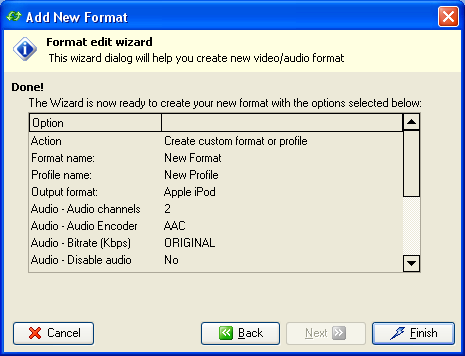
If the needed file format is not listed in the Select formats dialog box, you can Create custom format, Create custom profile for existing format, Delete custom format or Delete custom profile for specific format in the New Format Wizard. In order to add / create a new file format:
1. Click the Application settings  button on the Command bar to open Options dialog box.
2. In the Options dialog box, click Manage custom formats to open the New Format Wizard.
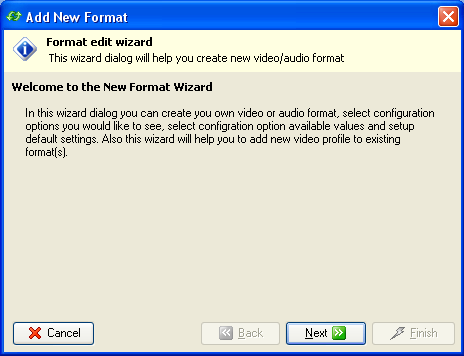
In the New Format Wizard dialog box, click Next to proceed.
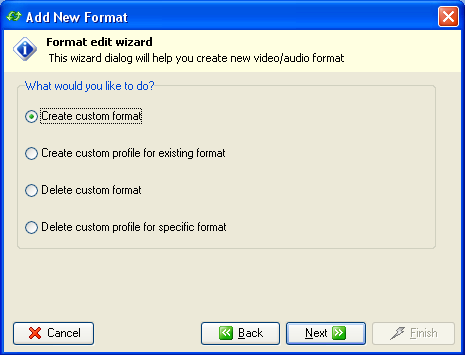
3. Select Create custom format and click Next.
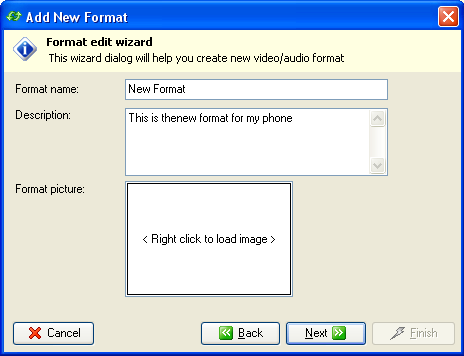
4. In the Format name box, type the name of the new format.
In the Description box, the description of the new format can be entered.
In the Format picture box, click the right mouse button, and then in the context menu, click Load or Paste to load or paste an image for the new format.
Then click Next to proceed.
5. In the Profile name box, type the name of the new profile.
In the Output format box, select the output format for new profile.
In the Available options box, select the options to be modified.
Then click Next to proceed.
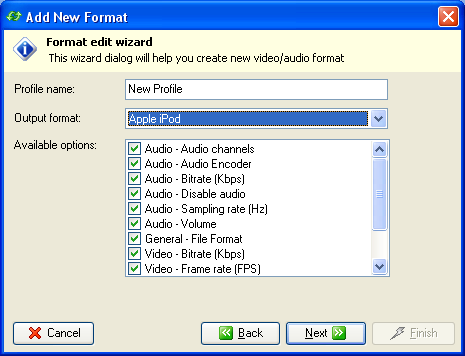
6. The following dialog box displays available options for new format. These options will be displayed in the Advanced options dialog box for the new format. To add options:
- Click on the area you want to change. The arrow on the right appears.
- In the corresponding box, select appropriate options.
Then click Next to proceed.
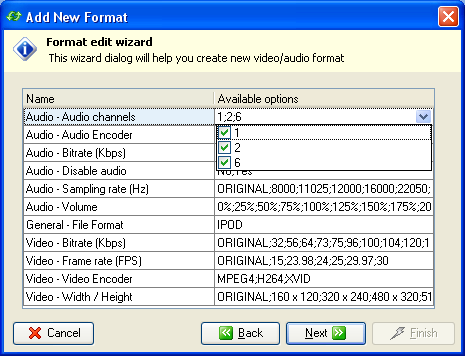
7. The following dialog box allows selecting default options for new format. To change any of the options:
- Click on the area you want to change. The arrow on the right appears.
- In the corresponding box, type or select appropriate value.
Then click Next to proceed.
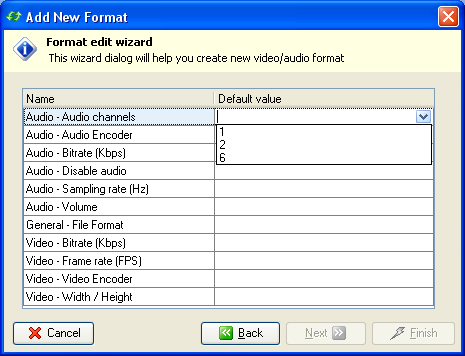
8. The following dialog box displays selected formats of the new file format. Click Finish to save all the settings.